1 Best Image Resizer Tool: Instantly Resize Photos Online for Free
Explore More Free Tools
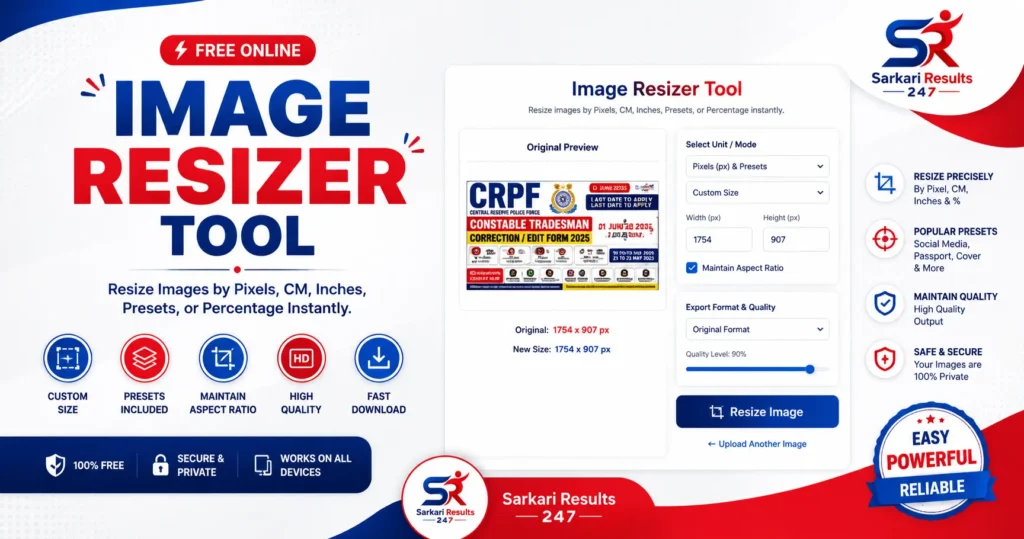
Are you struggling with incorrect photo dimensions for an online application? Our highly advanced Image Resizer Tool is the ultimate solution. Whether you need to change your image height and width to exact pixels, select a standard preset like passport size, or shrink the dimensions by a specific percentage, our free tool makes it incredibly seamless. Forget about downloading heavy editing software; optimize your images directly from your web browser in seconds.
Useful Features of Our Image Resizer Tool
We pride ourselves on offering a tool that brings premium, desktop-grade functionalities to your web browser completely free of charge. Our platform utilizes advanced web technologies standardized by the World Wide Web Consortium (W3C) to ensure cross-browser compatibility and rapid client-side image rendering. Here is a breakdown of what you can expect:
Core Features
- Custom Width & Height resize in Pixels
- Resize using Centimeters (cm) or Inches (in)
- Standard Preset Sizes (Passport, Social Media)
- Maintain Aspect Ratio toggle to prevent stretching
- Resize by exact Percentage (%) scale
- Crop and Resize simultaneously
- High Definition (HD) Quality Retention
- Automatic Fit and smart scaling logic
Supported Formats & Export Options
- Broad compatibility: JPG, JPEG, PNG, WEBP
- Download resized images instantaneously
- Custom file renaming before download
- Direct output format conversion
- Adjustable output quality slider (10% to 100%)
User Experience & Advanced Capabilities
- Smooth Drag & Drop file upload interface
- Live real-time preview of new dimensions
- Before vs After size comparison data
- Fully responsive Mobile and Tablet UI
- Smart background coloring for transparent PNGs
- Built-in 96 DPI standard conversions
- Lightning-fast processing with a one-click reset
How to Use This Image Resizer Tool
Our tool has been meticulously engineered to be incredibly user-friendly for both beginners and professionals. If you are preparing official documents, our presets align directly with international formatting standards, such as the strict U.S. Department of State passport photo requirements. Follow these easy step-by-step instructions to scale your digital photos perfectly:
- Step 1 (Upload): Navigate to the tool interface at the top of this page. Click the dashed Drag & Drop box to upload your target image from your local device.
- Step 2 (Analyze): Look at the "Original Preview" box to check your image's current width and height dimensions in pixels.
- Step 3 (Select Mode): In the control panel, choose your preferred operational mode. You can select Pixels, Percentage (%), Centimeters, or Inches based on your requirement.
- Step 4 (Set Dimensions): If using Pixels, you can utilize the preset dropdown for instant dimensions (like Passport Size or Facebook Cover). Otherwise, manually type in your Custom Width and Height. Leave the "Maintain Aspect Ratio" box checked if you want the tool to automatically calculate the proportional height to prevent image distortion.
- Step 5 (Format & Export): Select your desired final output format (JPG, PNG, WEBP) and adjust the Quality Slider according to your file size needs.
- Step 6 (Download): Click the blue "Resize Image" button. A new optimized preview will load. Finally, click the green "Download Resized Image" button to save the finalized file to your gallery.
Frequently Asked Questions (FAQs) : Image Resizer Tool
Is this Image Resizer Tool completely free to use?
Yes, our comprehensive photo resizing utility is 100% free. There are no hidden subscription fees, no premium paywalls, and absolutely no watermarks placed on your final downloaded images.
How does the percentage resize option work?
The percentage mode is a quick way to scale your image without knowing the exact pixel counts. If you select 50%, the tool cuts your image width and height exactly in half. Selecting 200% will double the dimensions of your original photo.
Will I lose image quality during the resize process?
When you reduce the size (downscaling), the quality remains excellent and sharp. However, if you drastically increase the dimensions of a small photo (upscaling), it may appear slightly blurry or pixelated, which is a normal behavior of standard digital images.
How do I keep a PNG's background transparent?
Our tool natively supports transparent images. If you upload a transparent PNG, make sure you select "PNG" in the export format dropdown. If you convert a transparent PNG to a JPG, the tool will automatically apply a solid white background, as JPG files do not support transparency.
Are my uploaded photos safe?
Your privacy is our utmost priority. Because our tool relies on client-side JavaScript, the entire resizing operation happens directly on your device's RAM. No files are ever uploaded, saved, or monitored on any external servers.